26.4.1 New Siterra Preview Notes
These notes describe what we've added to the new Siterra preview in this release. Review the Siterra Release Notes for other changes to the product in this release.
We're delivering this automatic upgrade to UAT environments on August 27, 2026 and to production environments on September 12, 2026.
These notes are subject to change until the production release.
Key changes
-
Some toolbar actions are relocated to context menus or ellipsis menus. For example, actions that are less frequently used, appear in the ellipsis (...) menu.
-
Siterra switches between classic and new Siterra as you work.
-
Fields, panel, and controls might appear in different locations.
-
Filters may appear in a side panel rather than within the page body.
-
Search controls may be positioned differently.
|
Area/Page |
Classic |
New |
Impact |
|---|---|---|---|
|
Asset |
Delete on toolbar. |
Delete in ellipsis menu. |
Extra click required. |
|
Incident |
Delete on toolbar. |
Delete in ellipsis menu. |
Extra click required. |
|
Asset |
Log / Subscribe / Archive as toolbar actions. |
Actions in ellipsis menu. |
Action location changed. |
|
Library pages |
Legacy layout |
New Siterra layout. |
Navigation and page structure changed. |
|
Navigation |
Pages open in classic / new Siterra based on current page. |
Pages open in preferred experience when available. |
Navigation behavior changed. |
|
Page actions |
Actions exposed directly on page. |
Some actions moved into overflow menu. |
Discoverability change. |
Mixed mode navigation in new Siterra
The New Siterra toggle now sets your preferred experience instead of switching between home pages. When New Siterra is selected, pages available in the new experience open in new Siterra. Pages that are not yet available open in classic Siterra. Siterra remembers your selection the next time you sign in.
Limitations
In this release, some links in Quick Access sections may open incomplete pages in the new Siterra experience. This will be addressed in a future release.
Add records from site page sections
In the Site page, select + Add in the toolbar of a section to create a new record directly from that section without navigating away from the page.
The new record is automatically associated with the current site.
The + Add button is available in the following sections:
-
Site Financial Data
-
Vendors
-
Leases
-
Incidents
-
Events
-
Notes
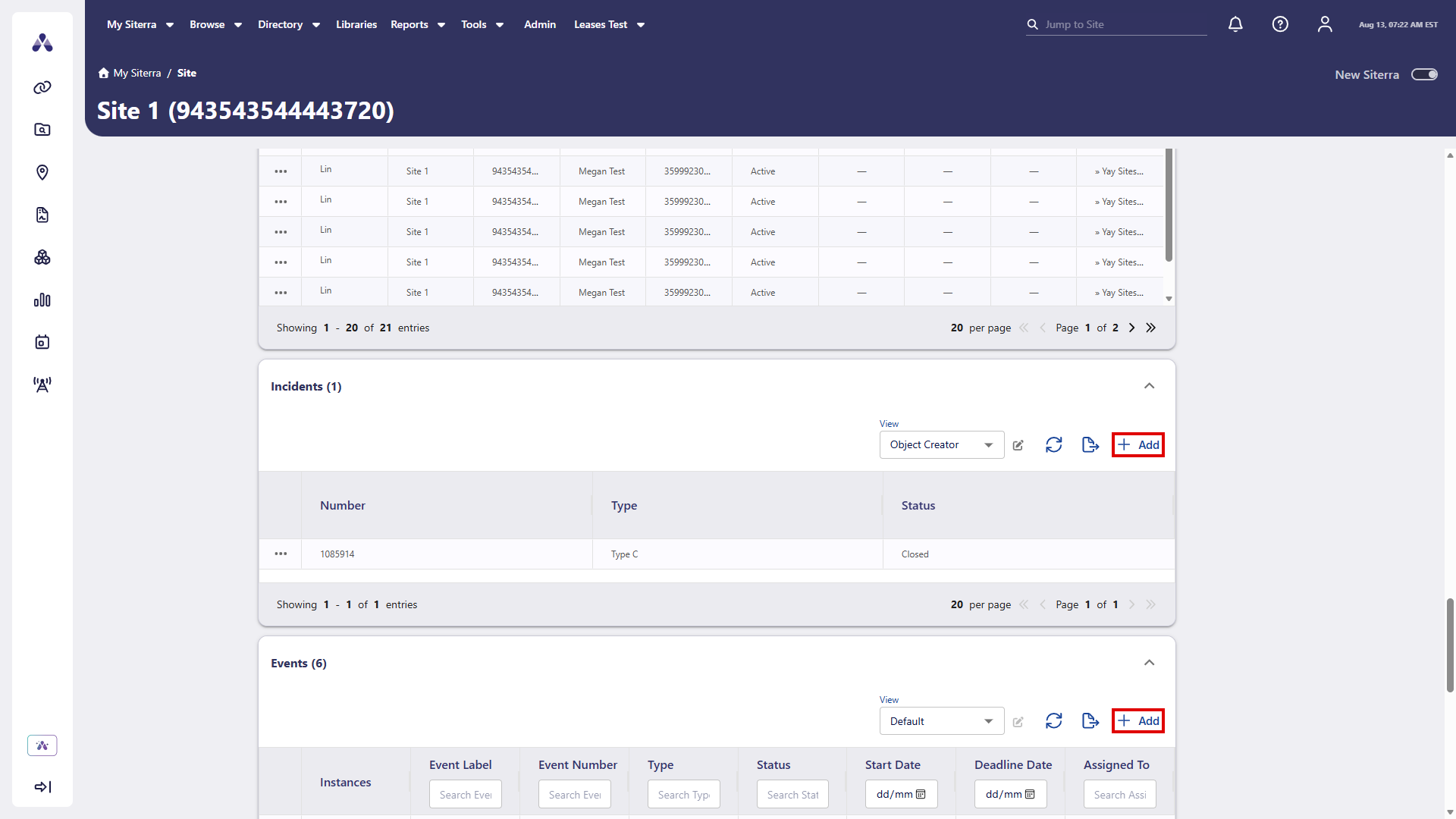
Site page events section row-level actions
In the Events section of the Site page, select the ellipsis ( ) to choose an action for an item. You can do this without leaving the grid.
Available actions:
-
Edit
-
View Notes
-
Mark as Complete
-
Remove User
-
Assign Group
-
Delete
-
Subscribe
-
Log
Search ring
The Search Ring page now shows real-time data in a clean layout. The Search Ring Data, Address, Responsibilities, Projects, and Notes sections appear with clearly defined columns. This layout gives you a complete view of the record at a glance. Sort columns, paginate through records, and navigate directly to related items.
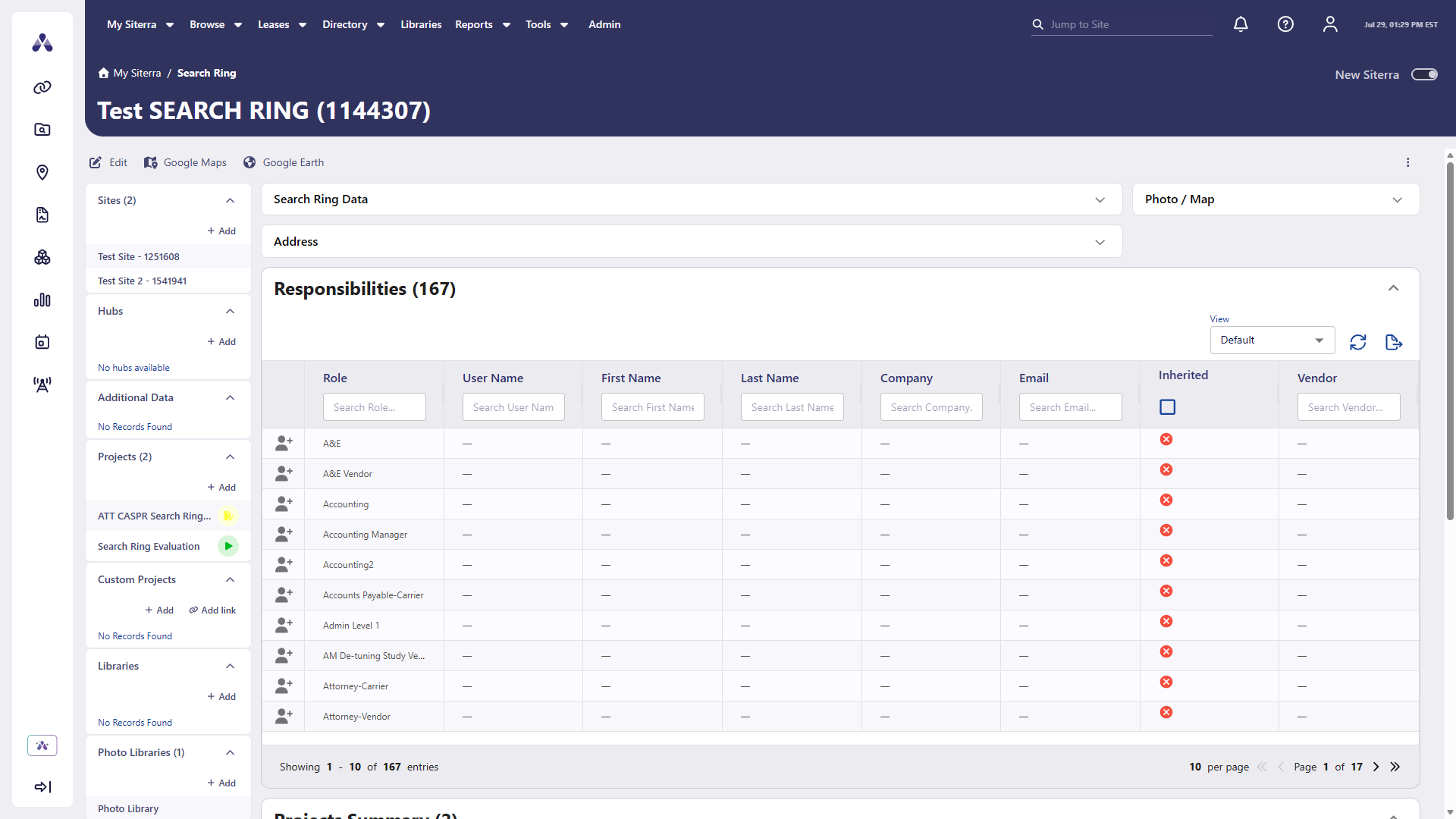
-
Select a View to change the grid layout to a saved view.
-
Select Refresh
 to reload the grid data without refreshing the page.
 -
Select Download
 to export the grid data.
Search ring responsibilities section row-level actions
In the Responsibilities section of the Search Ring page, select the ellipsis () to choose an action for an item. You can do this without leaving the grid.
Available actions:
Roles with no assigned user are indicated with a person with plus icon  . Roles assigned to a user are indicated by the ellipsis () icon.
To assign a user to a role, select the person with plus icon in the role, then in the Select User dialog, select + Select next to the user.
To reassign a role to another user, select the ellipsis () icon > Reassign, then in the Select User dialog, select + Select next to the user.
To remove an assignment, select the ellipsis () icon next to that role, then select Remove Assignment.
Search ring map view
The Search Ring page in new Siterra now includes a Map tab alongside the Photos tab. Select the Map tab to view the search ring location on an interactive map, rendered using the ring's geolocation data. The map displays the center coordinates and radius when available.
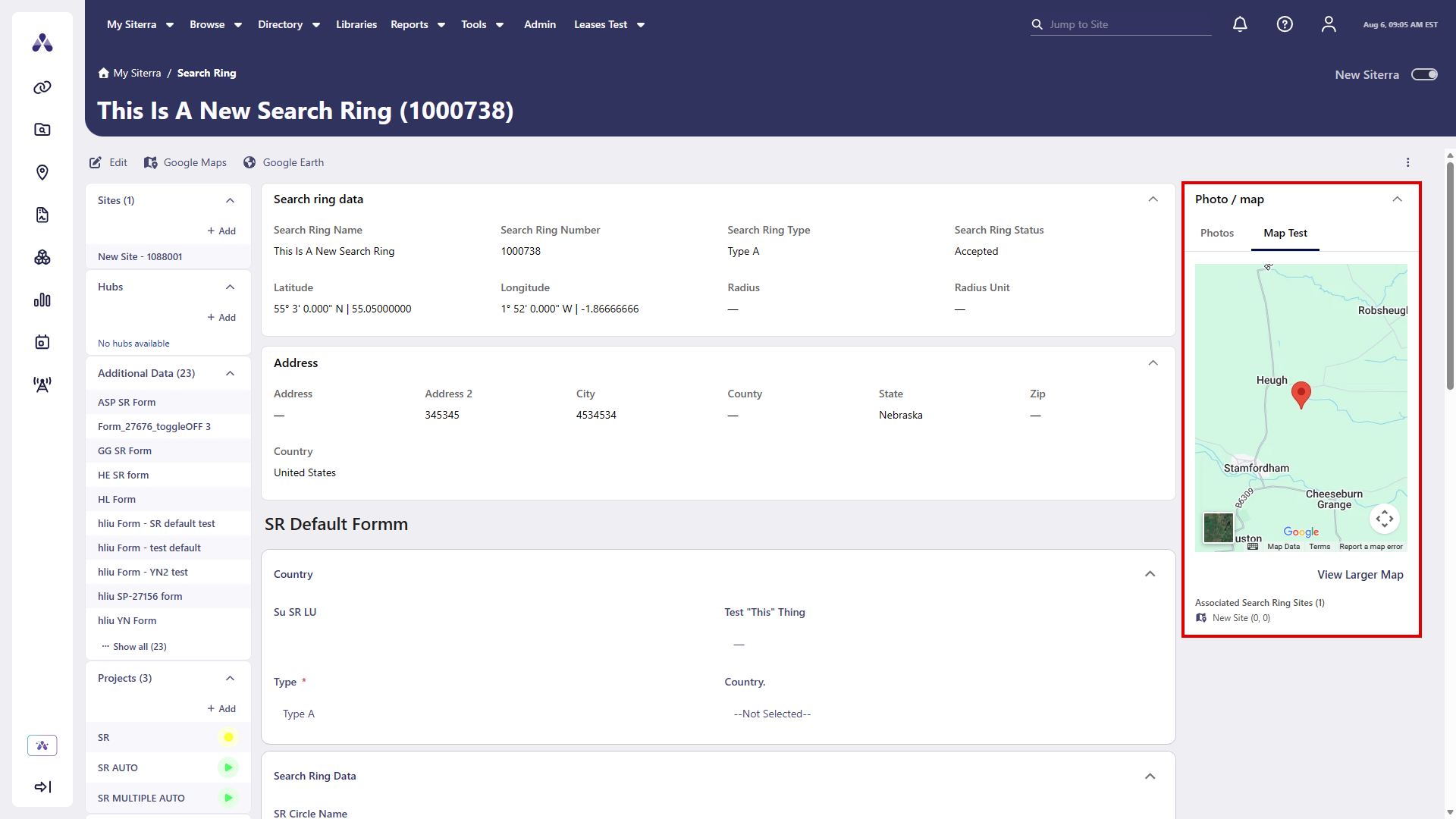
Search ring photo gallery
The Search Ring page in new Siterra now displays a photo gallery with a main image preview and a thumbnail strip. Select the Photos tab to browse images associated with the search ring. Select a thumbnail to update the main preview.
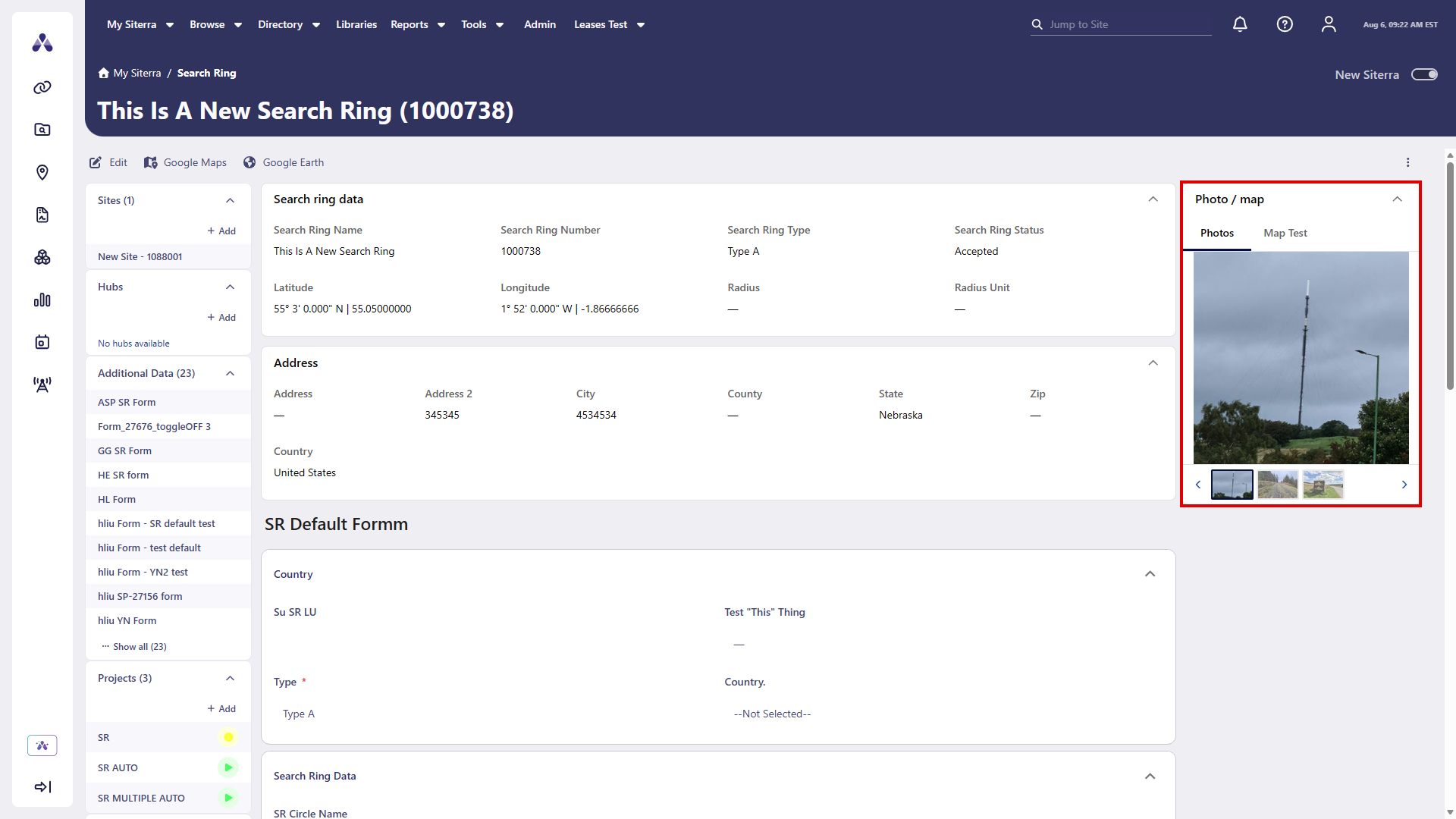
Search ring notes section row-level actions
In the Notes section of the Search Ring page, select the ellipsis () to choose an action for an item. You can do this without leaving the grid.
Available actions:
-
View
-
Edit
-
Reply
-
Delete
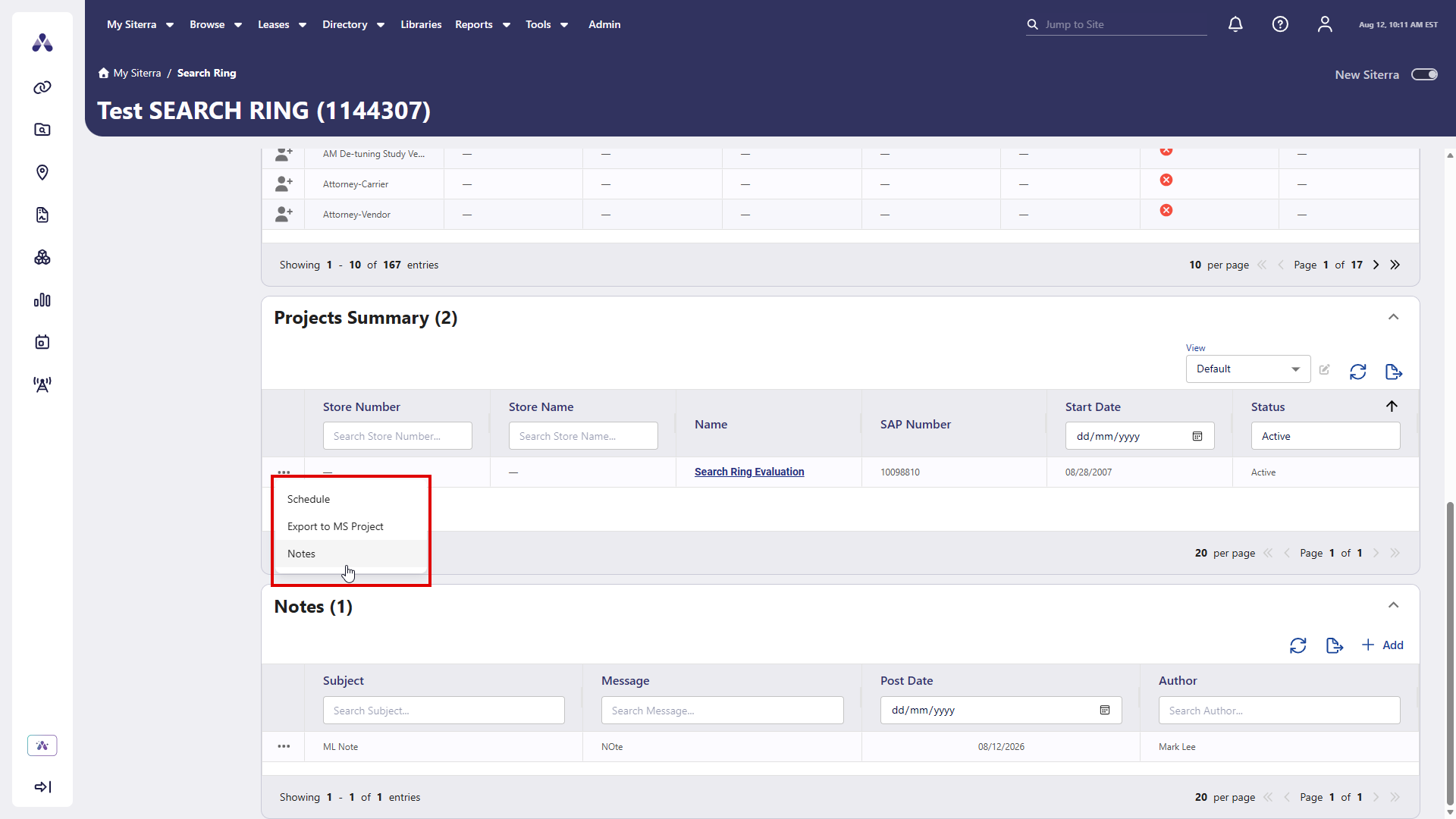
Search ring projects summary section row-level actions
In the Projects Summary section of the Search Ring page, select the ellipsis () to choose an action for an item. You can do this without leaving the grid.
Available actions:
-
Schedule
-
Export to MS Project
-
Notes
Events home page
We made multiple enhancements to the Events page.
Events page left navigation
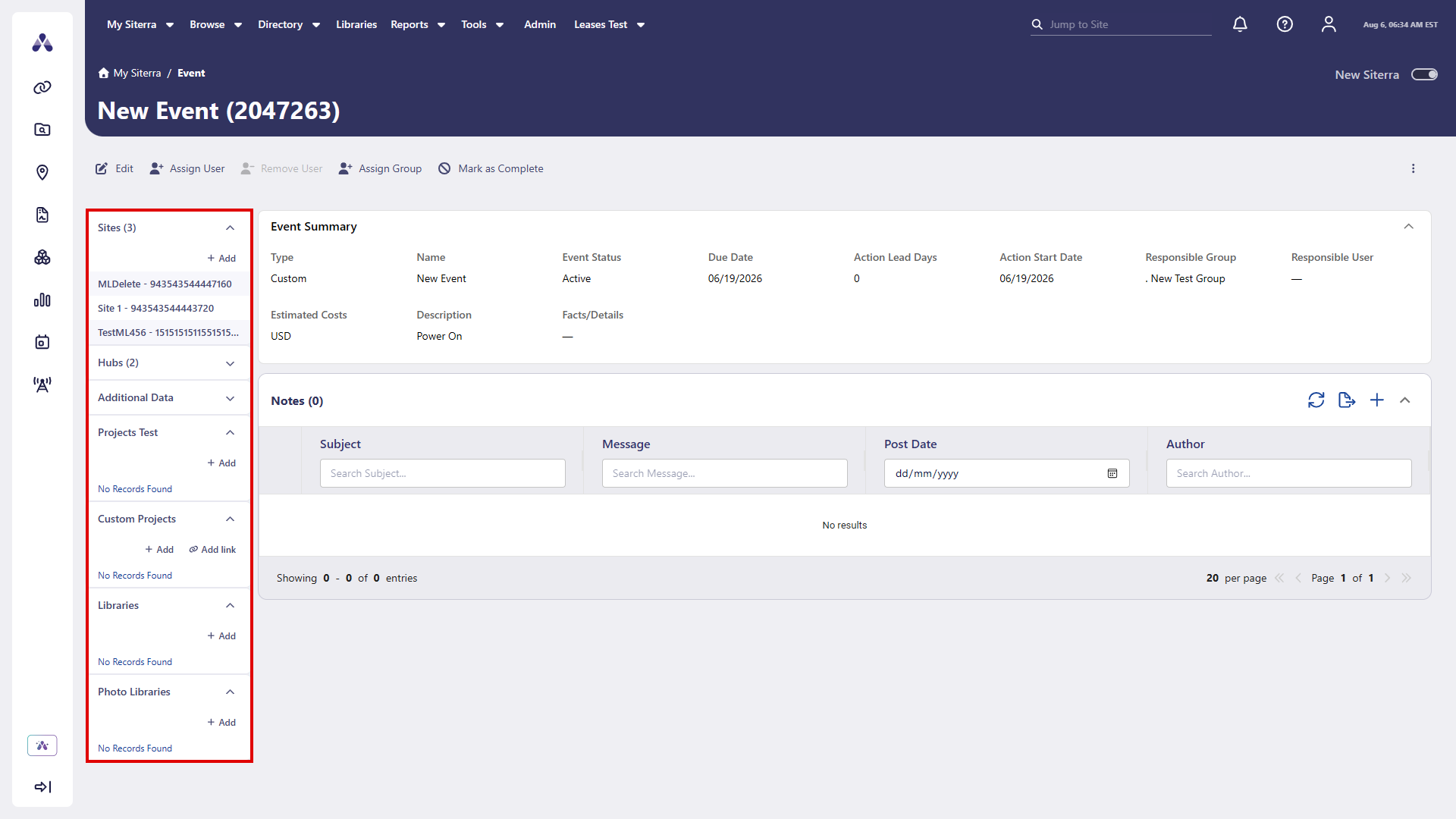
The Events page in new Siterra now includes a left sidebar navigation pane. Browse Sites, Hubs, Projects, Custom Projects, Libraries, and Photo Libraries from a single structured view. Expand or collapse each section header to focus on what matters, hover to view tooltips, and select Add to create new items without leaving the page.
-
Select a section header to expand or collapse that section.
-
Hover over a section header to view a tooltip describing the section.
-
Select Add on applicable sections to create a new item.
Events page top menu actions
The Events page in new Siterra now includes top menu actions for both parent events and recurring event instances. Available actions update dynamically based on the event type you're viewing and the current state of the record.
|
Icon / Option |
Function |
|---|---|
|
|
Edit event details. |
|
|
Assign a user to take action on the event. |
|
|
Remove the assigned user from the event. |
|
|
Assign a group to take action on the event. |
|
|
Mark the event as complete. Available for recurring event instances. |
|
|
Select the ellipsis (
|


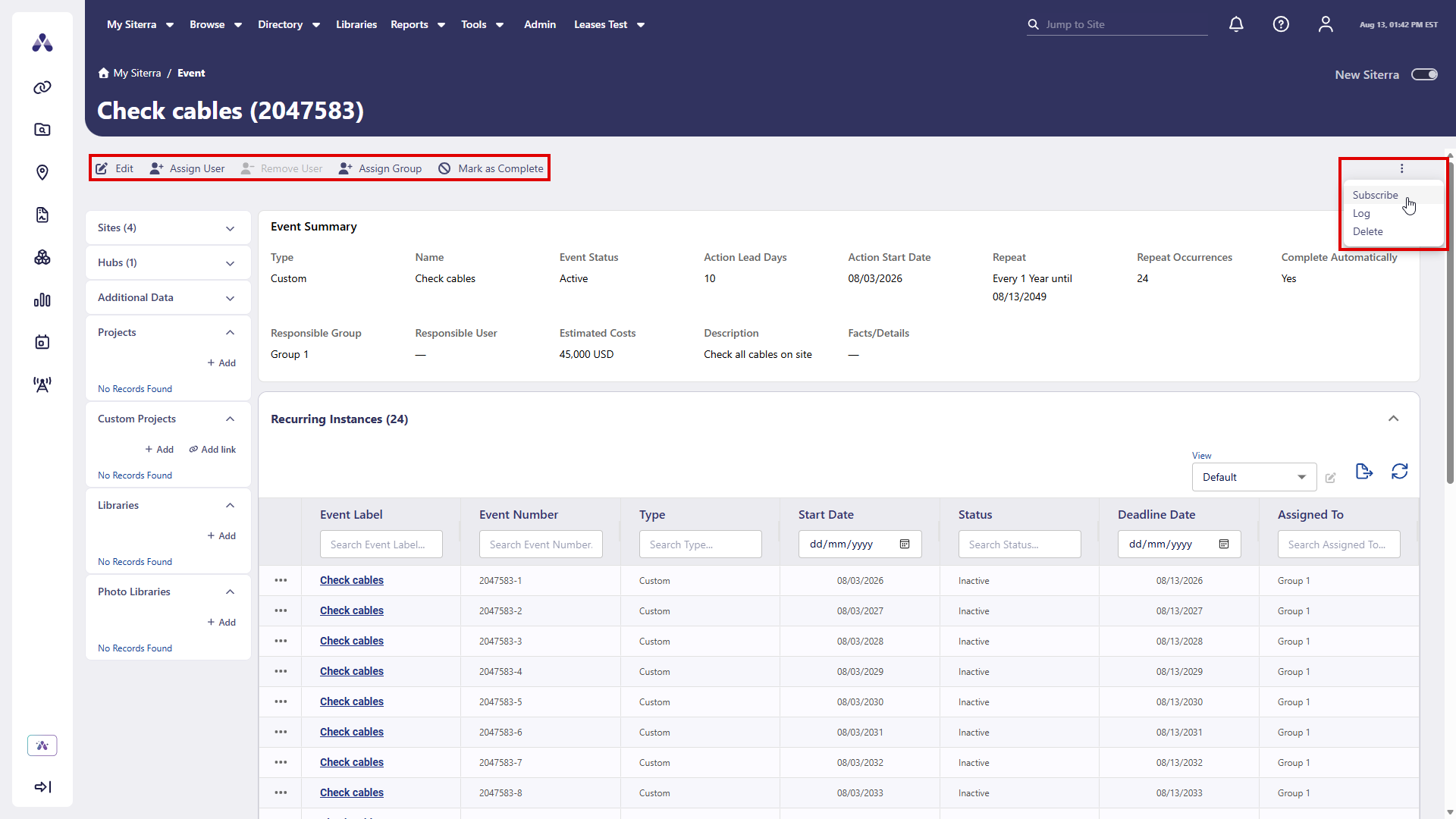
The menu updates dynamically: for example, Remove User appears disabled when no user is assigned. Available actions may differ between parent events and recurring event instances.
Recurring instances row-level actions
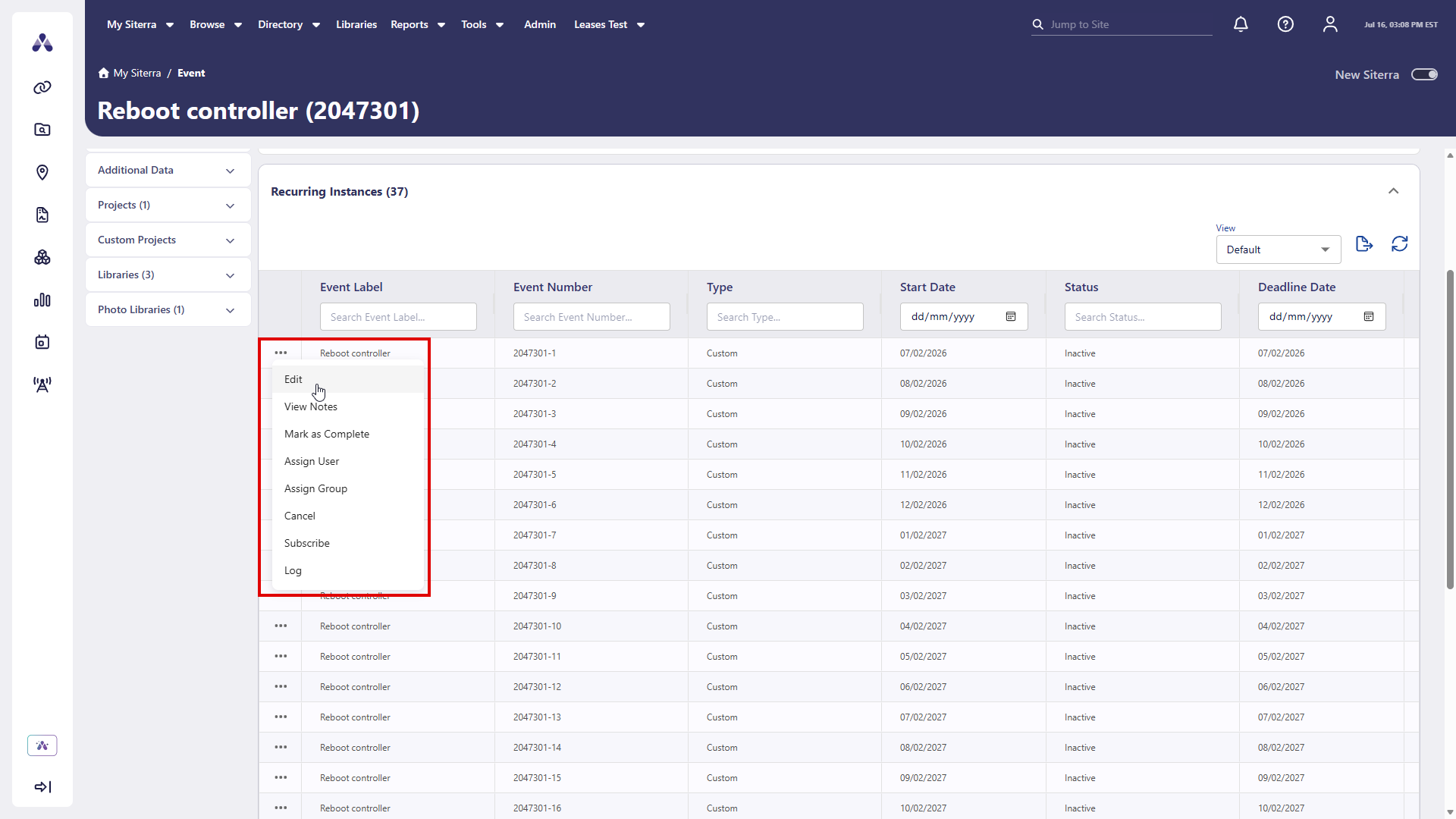
In the Recurring Instances section of the Events page, select the ellipsis () to choose an action for an item. You can do this without leaving the grid.
Available actions:
-
Edit
-
View Notes
-
Mark as Complete
-
Assign User
-
Remove User
-
Assign Group
-
Cancel
-
Subscribe
-
Log
Create and edit recurring instance views
In the Recurring Instances section of the Events page, select Create view to create a new saved view, or select Edit  next to the view selector to modify an existing view.
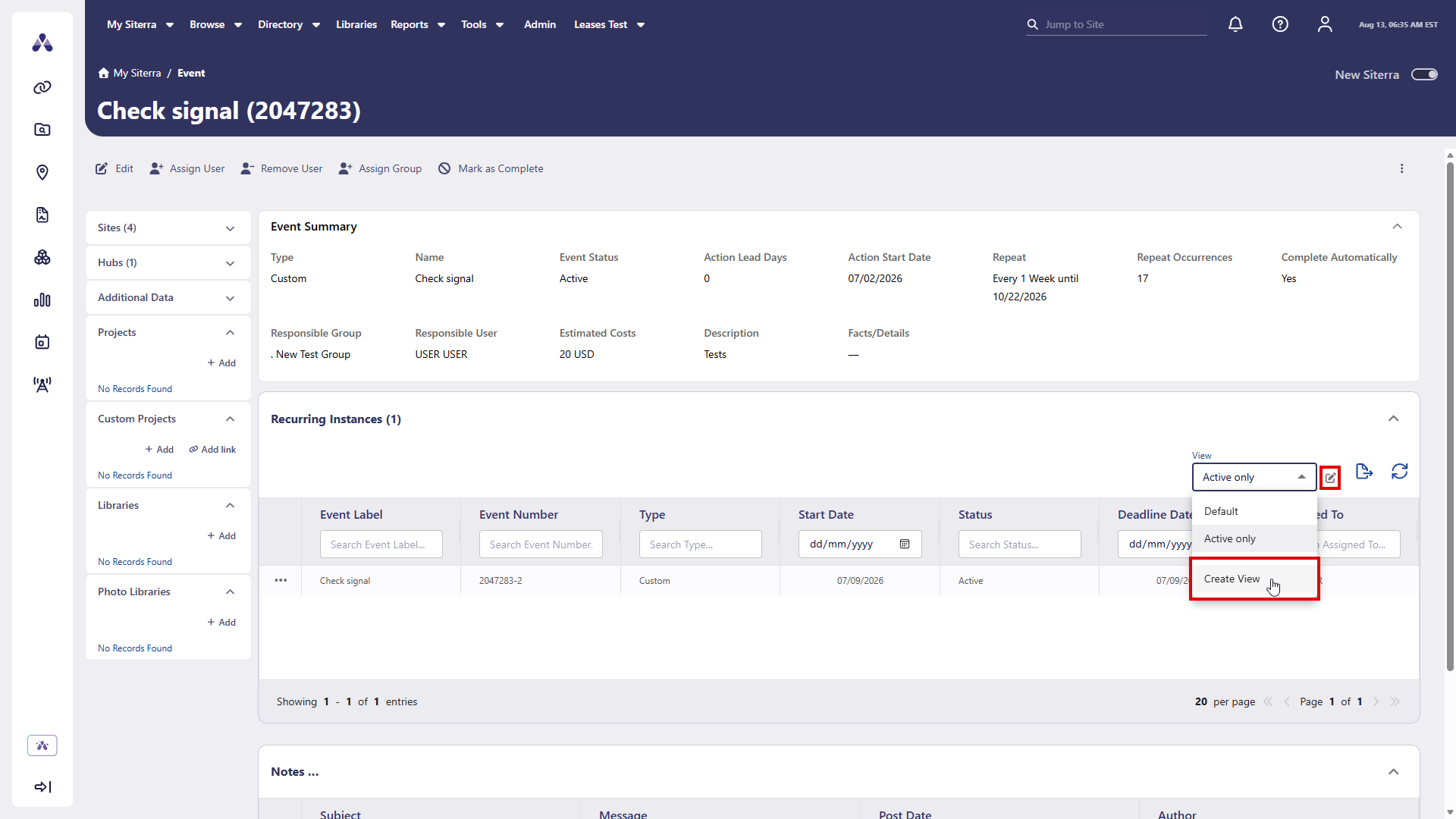
-
Select a View to change the grid layout to a saved view.
-
Select Create view to create a new view.
-
Select Edit
next to the view selector to edit the current view.
Navigate with recurring instances event labels
Select event labels in the Recurring Instances grid on the Events page in new Siterra to navigate directly to that event record without leaving new Siterra.
Grid view management controls
Grids across new Siterra now feature a standardized View selector experience. Manage saved views consistently across all supported grids with unified controls and terminology.
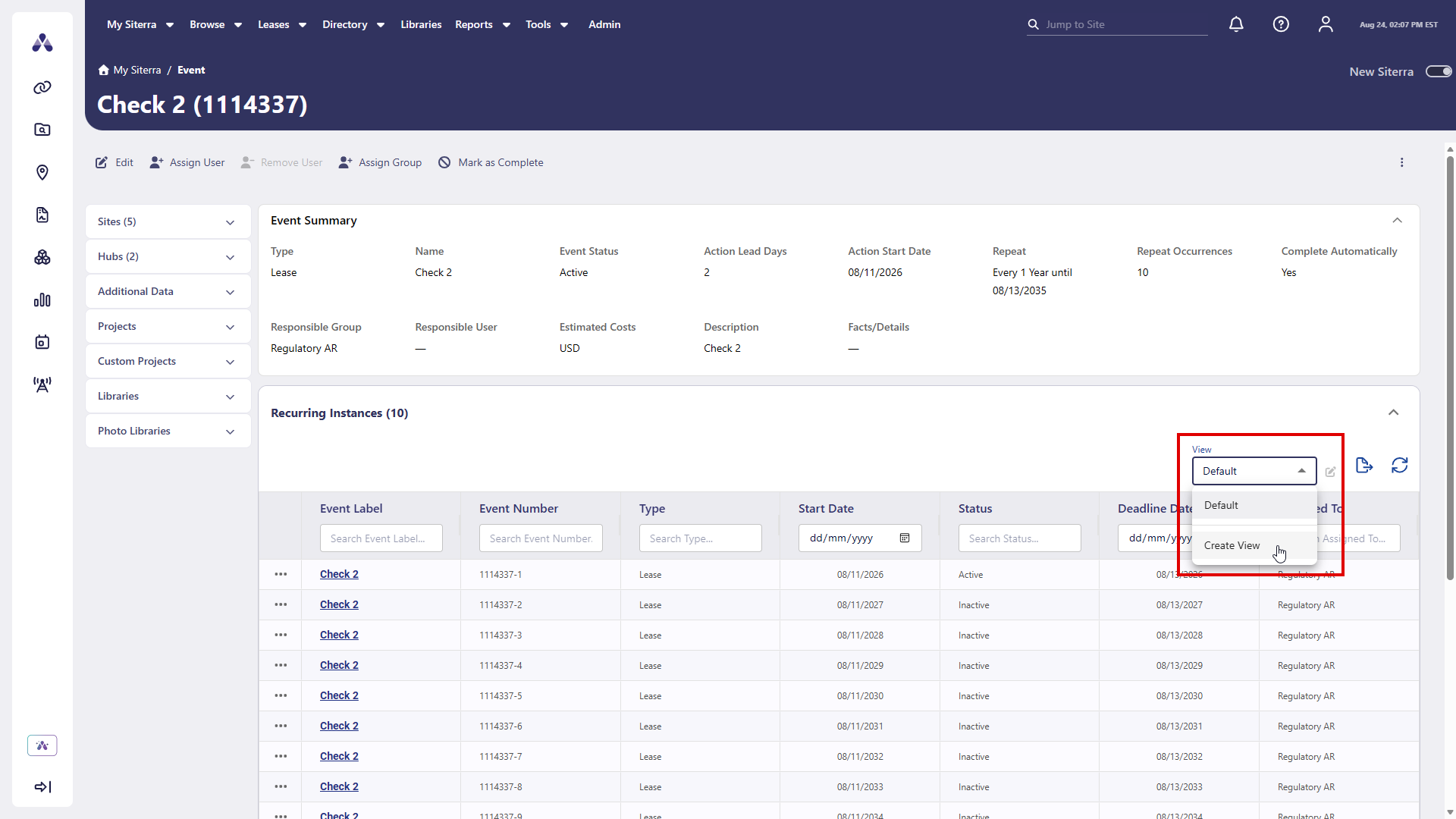
-
Select Create view in the view selector to create a new saved view.
-
Select Edit
next to the view selector to modify the layout and column configuration of the current view.
Edit a project
Edit a project directly from the Project page without having to navigate away from that page. Edit the Name, Number, Start Date, End Date, Workday Schedule, Status, and Extended Attributes.
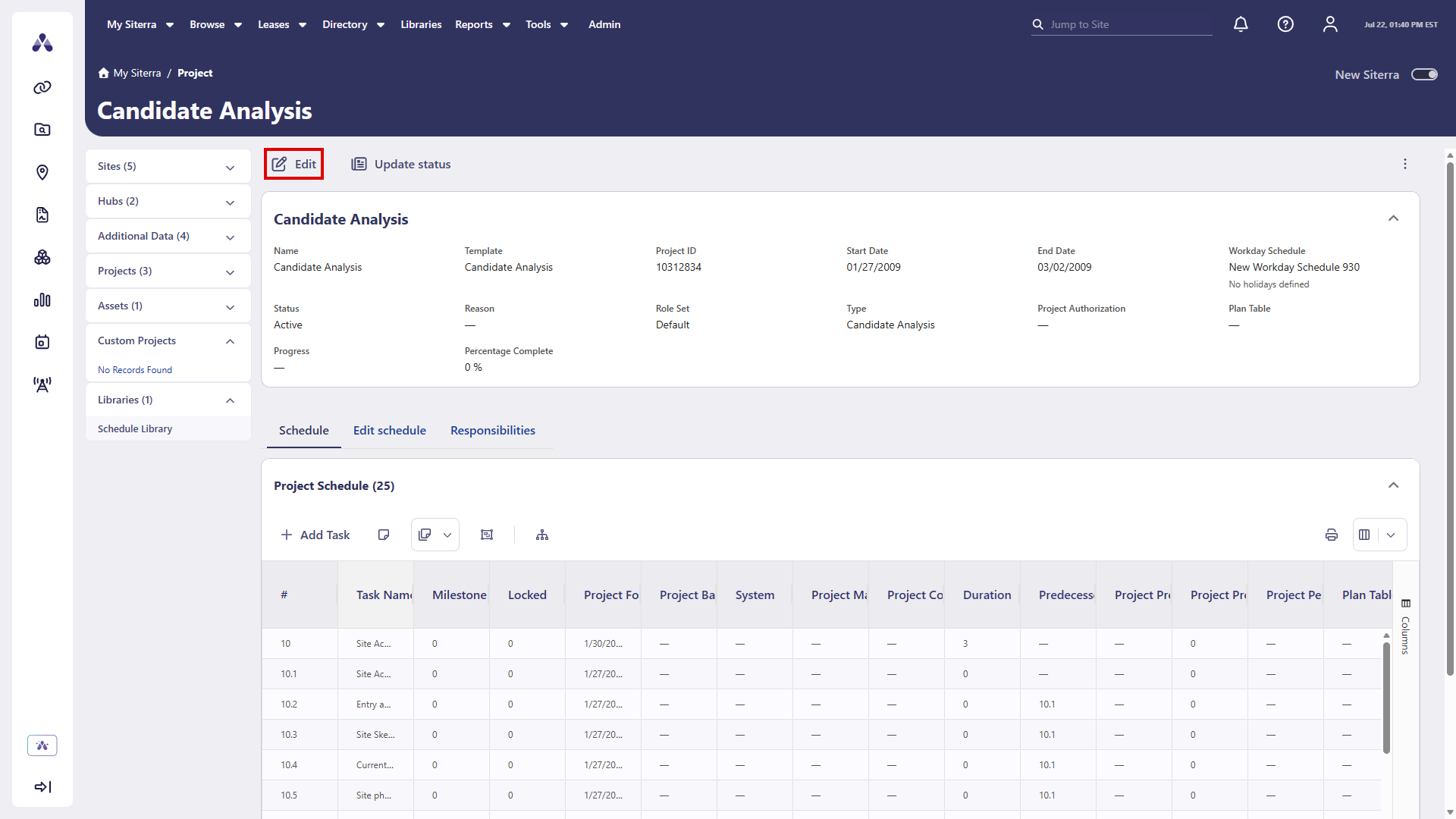
-
Select Edit.
-
Make your changes.
-
Select Update.
Update a project status
Update a project's status directly from the Project page in new Siterra. Select Update Status in the toolbar to open the Status Update dialog. Select the new status, optionally add a reason, and then select Update. The Project Information card refreshes automatically to reflect the change.
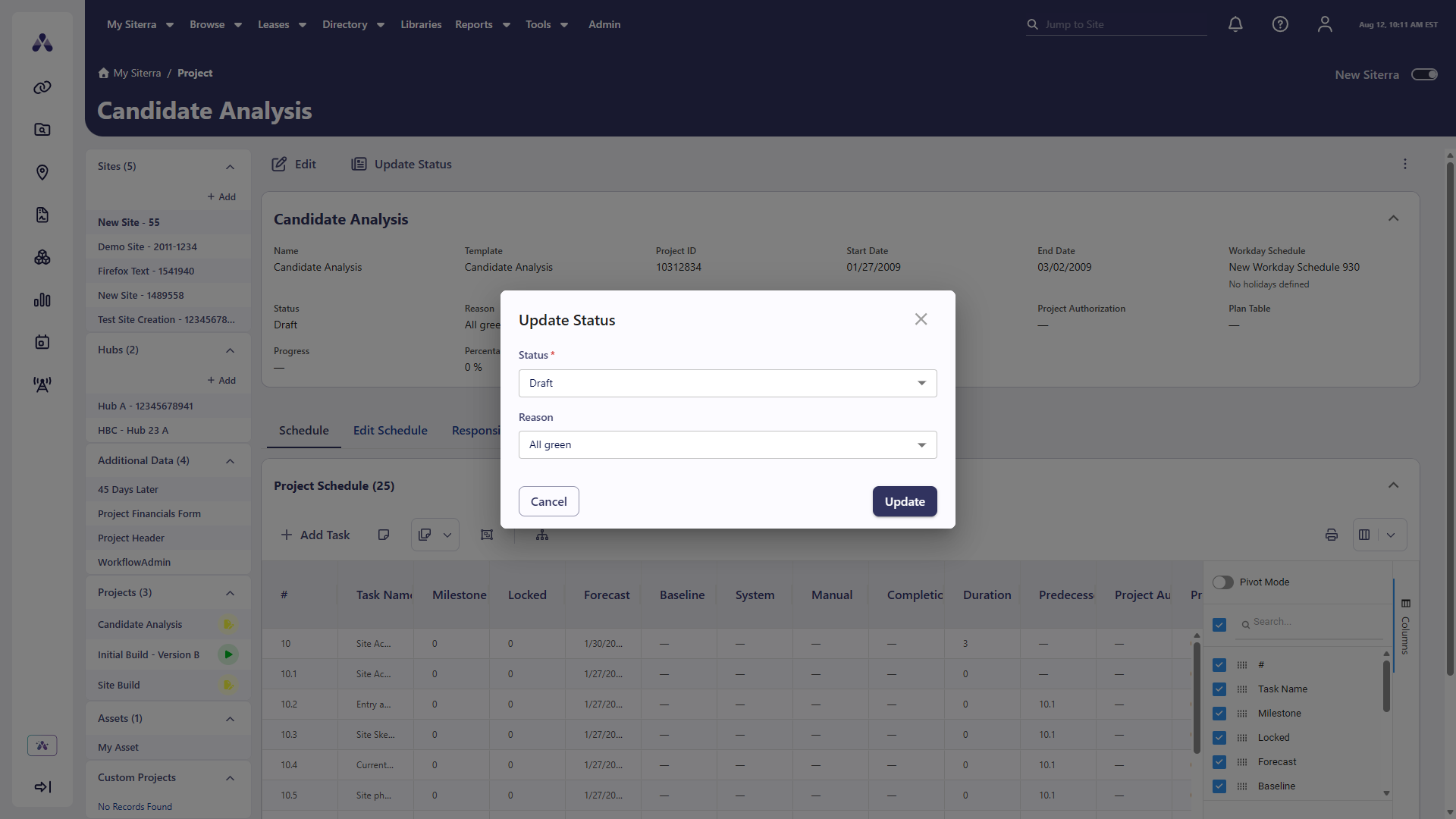
-
Select Update Status.
-
Select the new Status.
-
Optionally, select a Reason.
-
Select Update.
Project page ellipsis menu
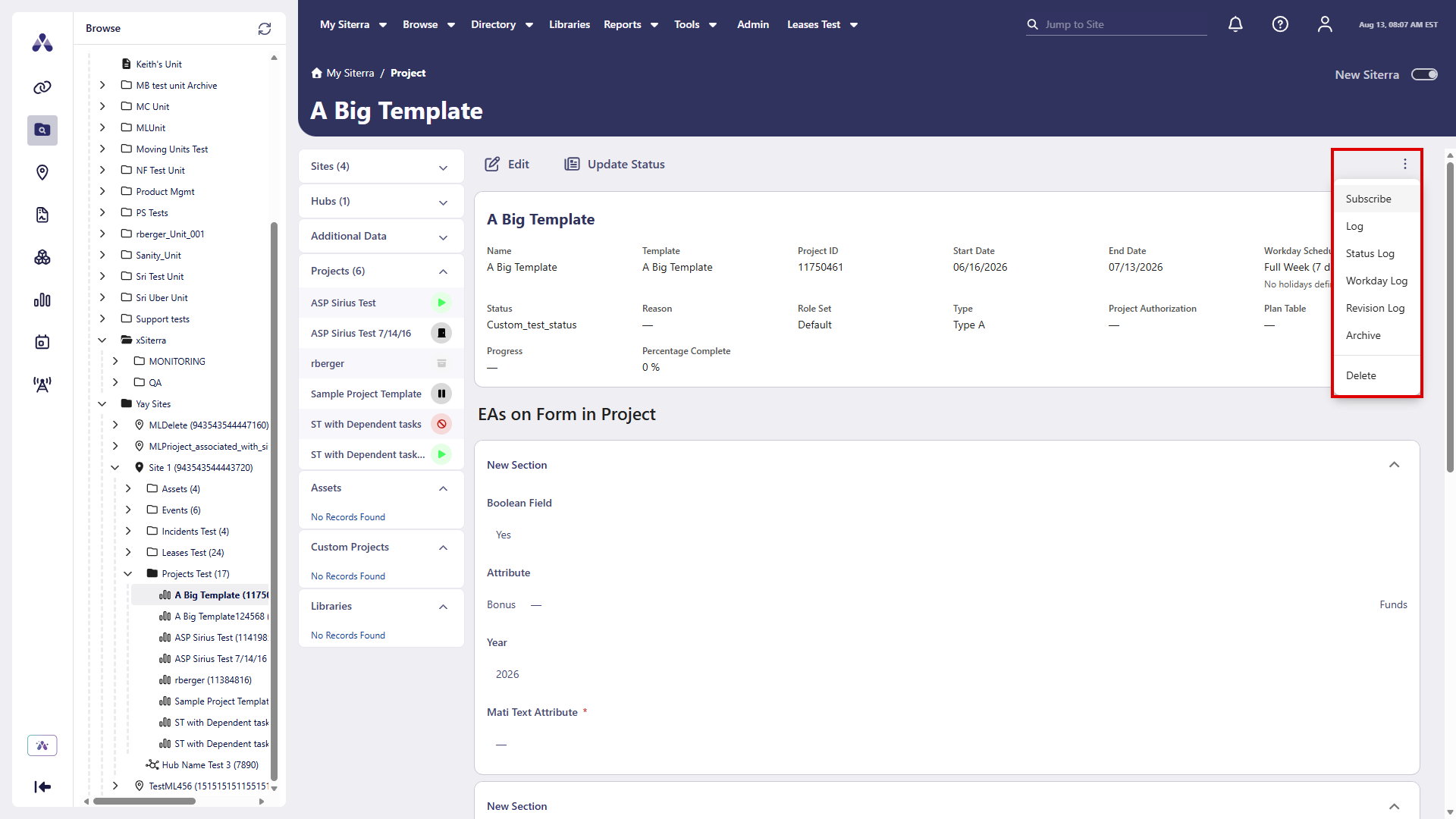
In the project home page toolbar, select the ellipsis menu ( ) to access additional actions. You can do this without navigating away from the page.
-
Subscribe
-
Log
-
Status Log
-
Workday Log
-
Revision Log
-
Archive
-
Delete
Asset page terminology labels
The Asset page now displays labels and section headers your administrator configured on the Terminology page, enabling your organization to use their terminology. For example, if your administrator renames Components to Equipment, new Siterra displays that customization consistently across the asset data, grids, section headers, and navigation labels.
Incident page
We made multiple enhancements to the Incident page.
Incident page top menu actions
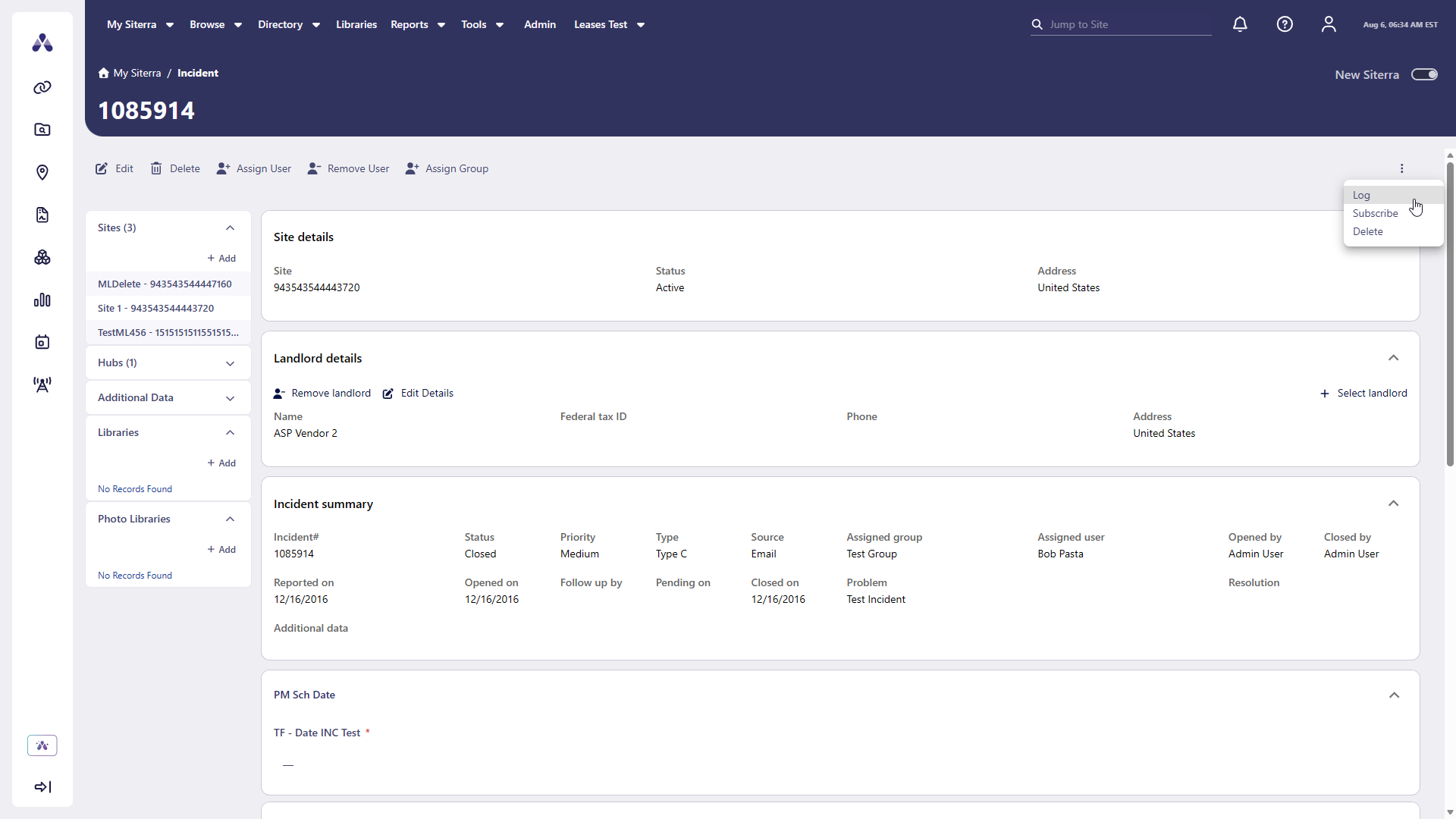
The Incident page in new Siterra now includes these top menu options when available.
|
Icon / Option |
Function |
|---|---|
|
|
|
|
|
|
|
|
Assign a user to take action on the incident. |
|
|
Remove a user from the incident. |
|
|
Assign a group to take action on the incident. |
|
|
|
|
|
Select the ellipsis ( |

Incident page left navigation
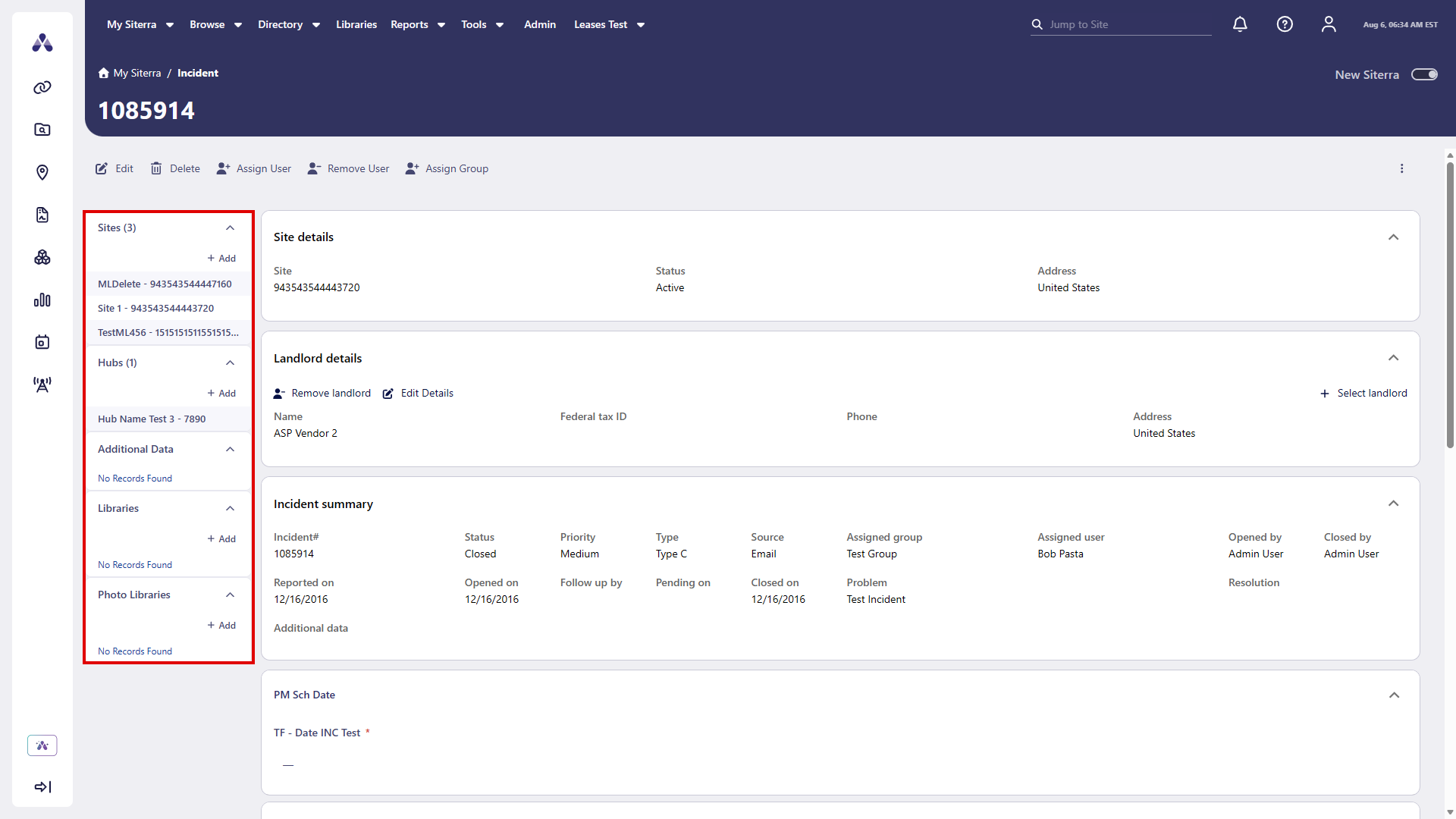
The Incident page in new Siterra now includes a left sidebar navigation pane with sections: Sites, Hubs, Additional Data, Libraries, and Photo Libraries. Expand or collapse sections, hover to view tooltips, and navigate directly to related items. Items navigate to new Siterra where it is available for that item.
-
Select a section header to expand or collapse that section.
-
Hover over a section header to view a tooltip.
-
Select Add on applicable sections to create a new item.
Create a project
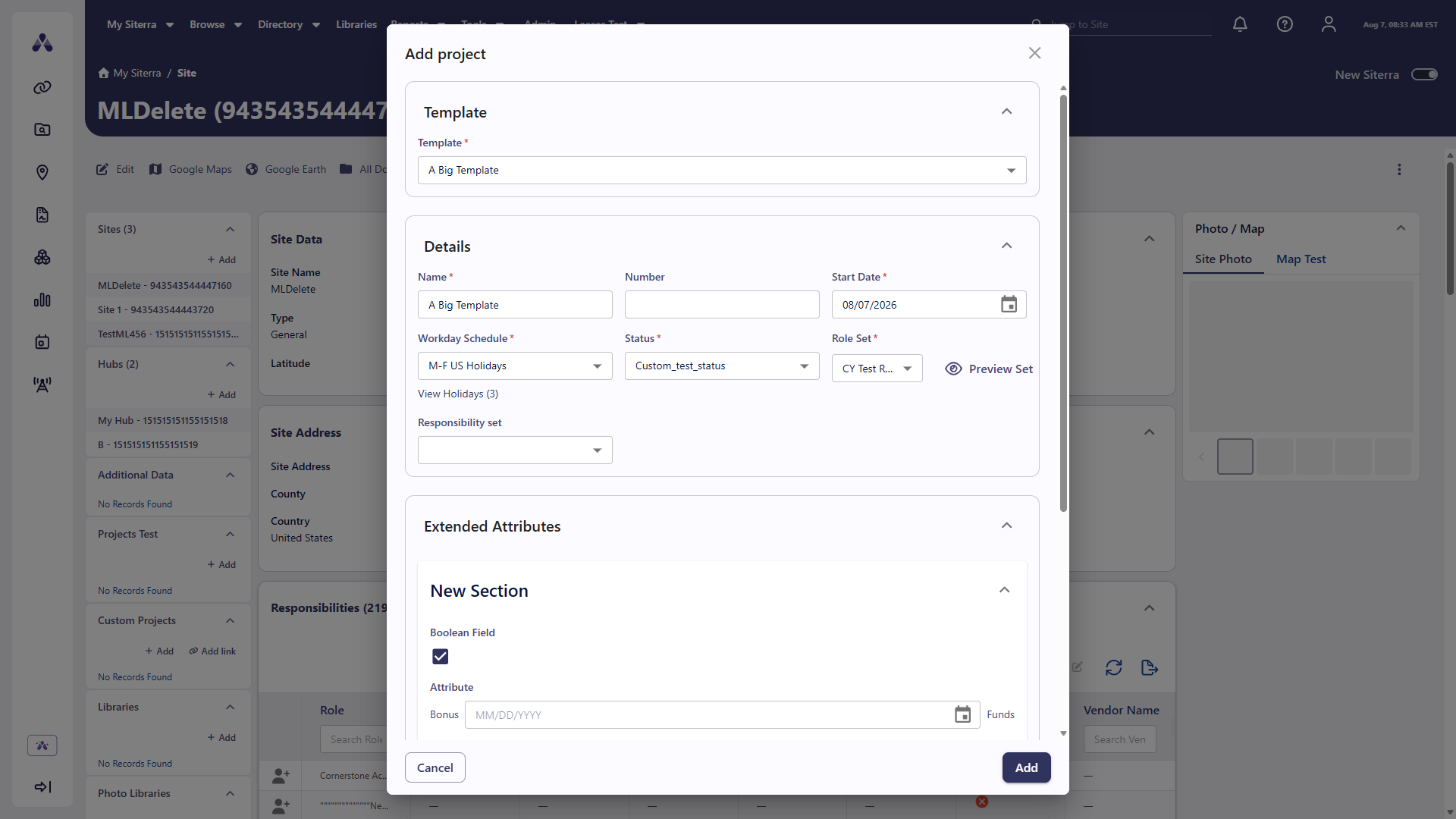
The system now supports creating a new project directly in new Siterra. Select the template, then complete the required fields and select Add to create the project. Select Cancel to return to the previous page without saving.
-
Select + Add in the Projects section of the left sidebar navigation pane.
-
Select the Template.
-
Complete the Details section.
-
Name: This automatically populates with the name of the project template. Enter a unique name for the project.
-
Number: (optional) Enter a number for the project. Siterra automatically creates a number if you do not enter one.
-
Start Date: Enter a start date for the project. This can be any date in the future or the past.
Siterra calculates all task forecast dates and durations based on the Start Date. These values are set up on the project template. Contact your administrator for more information.
-
Workday Schedule: Select a schedule to define the working days for your project. Select View Holidays to display holidays for that work day schedule.
-
Status: Select a status for the project.
When the project status is Active, subtasks appear in the To-Dos for each user that is assigned a responsibility.
-
Role Set: Select the role set that contains the responsibility sets you want to assign to tasks and subtasks of this project. Select Preview Set to display a list of tasks and the roles they are assigned for the selected role set.
-
Responsibility Set: Select the responsibility set that defines the role-to-task mapping you want for this project.
-
-
Complete remainder of the form and then select Add.
Your administrator may have added additional required fields to the Extended Attributes section.
Required fields are marked with a red asterisk *.
The project appears in the Projects section of the object home page. On some object home pages, the project also appears in the Projects Summary section.
To discard your changes, select Cancel.
Home page last visited navigation
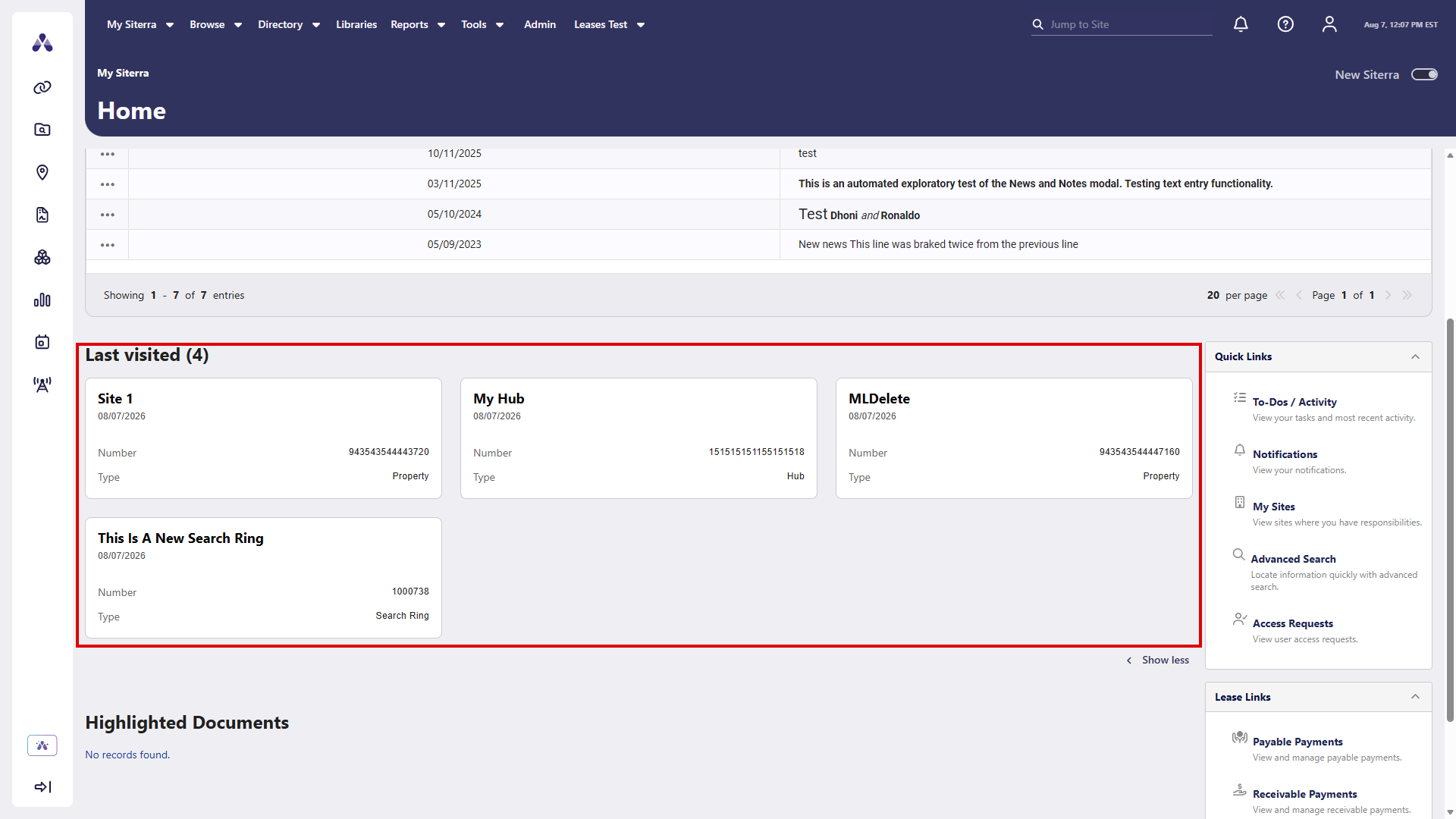
Select a site, asset, project, or search ring that you recently visited in the Last visited section of the new Siterra Home page to open that record in new Siterra. This provides a consistent experience and reduces context switching.
Site financial data
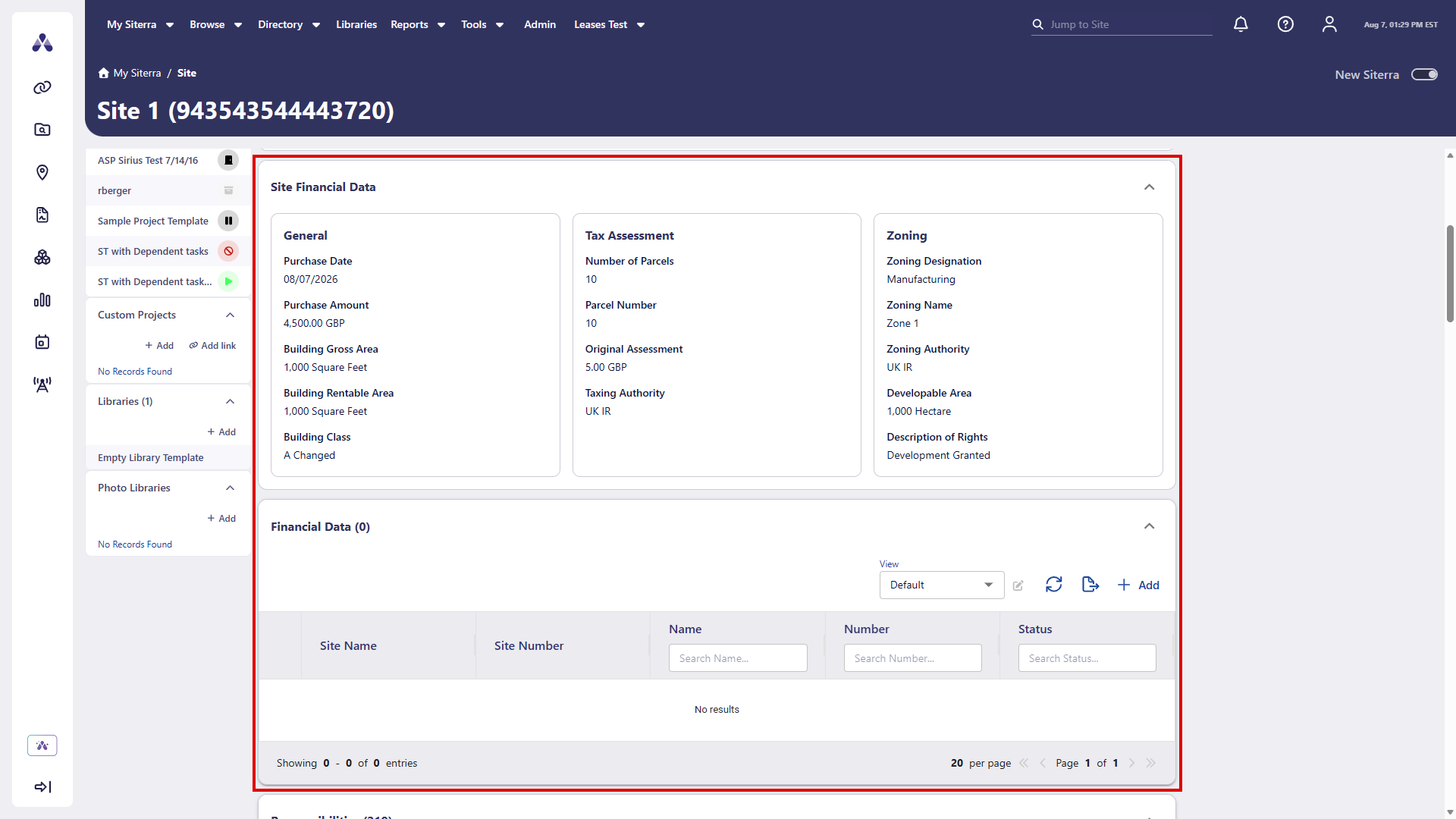
The Site page in new Siterra now displays financial data sections for sites with a Property site of Owned. The Site Financial Data section shows General, Tax Assessment, and Zoning information at a glance. A companion grid section lists financial data records with sortable columns. Expand or collapse each section by selecting the section header or the chevron.
-
Select the section header to expand or collapse the section.
-
Select Add in the grid section to add a new financial data record.
Asset page section ordering
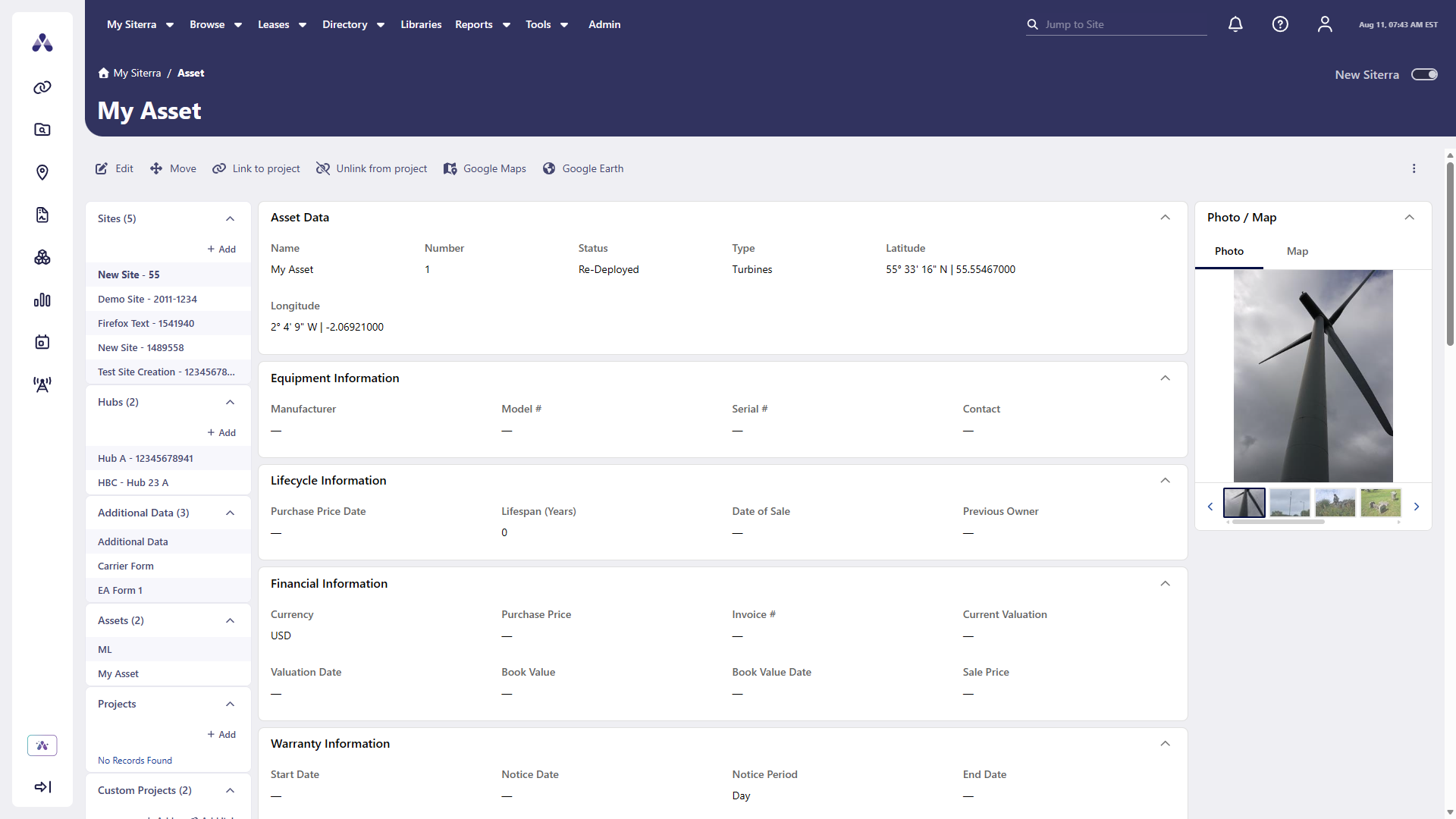
The asset home page in new Siterra now displays all sections in a familiar, consistent order that matches classic Siterra. When you open an asset, sections appear top-to-bottom in this order: Asset data, Equipment Information, Lifecycle Information, Warranty, Extended Attributes, Components, Projects Summary, Incidents, and Notes. The Financial Information section also appears in its expected position when your administrator has configured that for your environment.
The first section is now labeled Asset Data, matching classic Siterra. This allows you to switch between the classic and new Siterra without relearning where information appears.
Improvements and issues fixed
|
Component |
Summary |
Reference # |
|---|---|---|
|
Asset |
The Asset edit form in new Siterra now displays a specific inline error message when you enter a name or number that already exists, instead of a generic error. |
SP-60060 |
|
Project |
The Project form in new Siterra now correctly displays and saves text extended attribute fields. |
SP-59938 |
|
Project |
The Responsibilities section of the Project page in new Siterra now correctly paginates records across pages. |
SP-59955 |
|
Search |
The tree hierarchy in From on the Search page now correctly loads after refreshing the page. |
SP-60055 |
|
Sites |
The Site page in new Siterra now remains stable when you scroll quickly or reload the page. |
SP-60068 |